Tellagent
AI Workflows
An AI workflow chains steps together — read something, ask an AI agent, send or save the result — and runs them when you press Run or on a schedule. AI Workflows live in Tellagent: open a project, choose Tellagent from the search box at the top, and it opens on AI Workflows.
The list
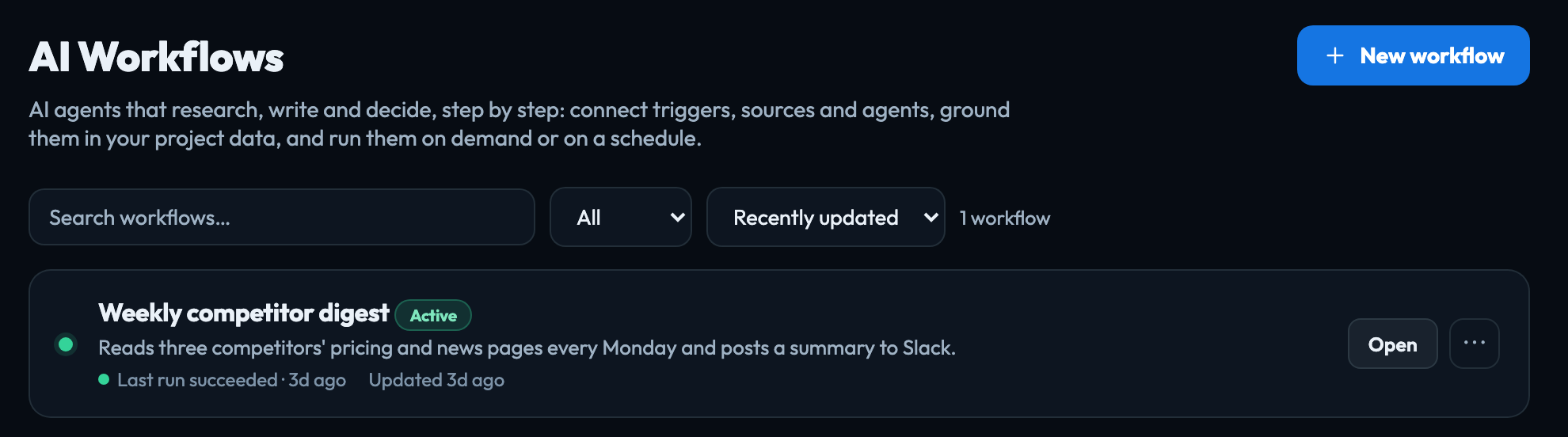
Every workflow in the project, with its status, when it last ran and whether that run worked. Anyone who can open the project can see, edit and run its workflows.
- Search, a status filter (All, Failing, Active, Paused, Draft) and a sort sit above the list.
- A workflow whose last run failed or partly failed is marked Failing in red and sorts to the top.
- New workflow starts a blank canvas or one of five templates: Grounded summary, Scheduled digest, Research & notify, Refine to a target (loop) and Research pipeline (parallel).
- The ⋯ menu at the end of a row opens or deletes a workflow. Deleting removes it and its run history for good.
A workflow you made before workflows belonged to projects is listed under Needs a project at the foot of the page. Move to this project files it here; its schedule does not change.
The blocks
| Manual trigger | Runs when you press Run. |
|---|---|
| Schedule | Runs by itself — every so often, every day or every week at a time, or on a cron expression. |
| Chat message | Starts when someone sends a message. See Chatbots, and Test chat. |
| Project context (RAG) | Reads a project's documents, datasets and skills, so the steps after it work from your own material. Documents are sent whole when they fit, otherwise searched for the passages that matter. |
| Fetch web pages | Reads up to 6 public web pages you list. |
| Collect from a web page | Files one page's text, or the documents it links to, in a project's Data Management, and passes what it collected to the steps after it. Collect from a web page |
| Agent / LLM | A prompt you write. It answers using everything read before it; {{result}} in a later step is its answer. Model is Default model or Deep reasoning, a larger model that costs more per step. Where deep reasoning is not available, the step uses the default model and says so. |
| Loop (iterate to a goal) | Drafts, improves and re-drafts toward a goal until it meets your Done when… criteria, then keeps the best version. Up to 6 rounds. It has the same Model choice, under Advanced. |
| Read feeds | Reads a project's RSS and Atom feeds that are due, has the AI curate them, and keeps what passes in the project's collection. Its feeds, sections and rules are set up in the block. Read feeds |
| Condition | Checks a value — contains, equals, does not equal or exists. When it does not match, that path stops. |
| Parallel (fan-out) | Runs the connected branches at the same time, each starting from what the run has so far. A block that more than one branch leads to runs once, after every branch has finished, and works from all their results. |
| Human checkpoint | Stops the run until someone approves it. Approving a checkpoint |
| HTTP request | Calls a public web address with GET or POST. |
| Send Slack | Posts to a channel, or to a person by their email, through your account's own Slack. It needs Slack connected in Account → Connections; without it the step stops the workflow and says Slack isn't connected. |
| Send email | Emails the address you enter. |
| Email a digest | Emails the newest collected items to every Thrive contact with a tag, when the Schedule starts it. Email a digest |
| Output to project | Saves the result as a page in a project's Data Management. |
| Reply | Sends an answer back in a chat. |
| Post through Beacon | Runs one of your Beacon automations. The automation decides what to post, and never posts the same item twice, so running this step more often checks more often without posting more often. |
Ground the agent in your own documents. Put a Project context block before the Agent / LLM and it answers from what the project holds, not from general knowledge.
What each run costs appears in Observability as Tellagent.