Tellagent
Automations
An automation does something every time something happens: a deal moves to a stage, a contact gets a tag, a Shopify order comes in, a form posts to a webhook. It can send an email or a text, update the contact in Thrive CRM, wait, and take different paths depending on what it finds. Each contact goes through on their own schedule, so "wait 2 days, then follow up" works for every contact separately. Open a project, choose Tellagent from the search box at the top, then Automations in the menu on the left. Email templates, in the same menu, holds the emails automations can send.
Watch the videos
Tellagent Overview2:08 videoBuild an Email Automation2:14 videoBuild, Sell, Follow Up: Chimp, Mercato and Tellagent Together4:50 videoAutomations work on your Thrive CRM contacts and deals. An automation belongs to the project it was made in, and acts on the contacts and deals of your whole account.
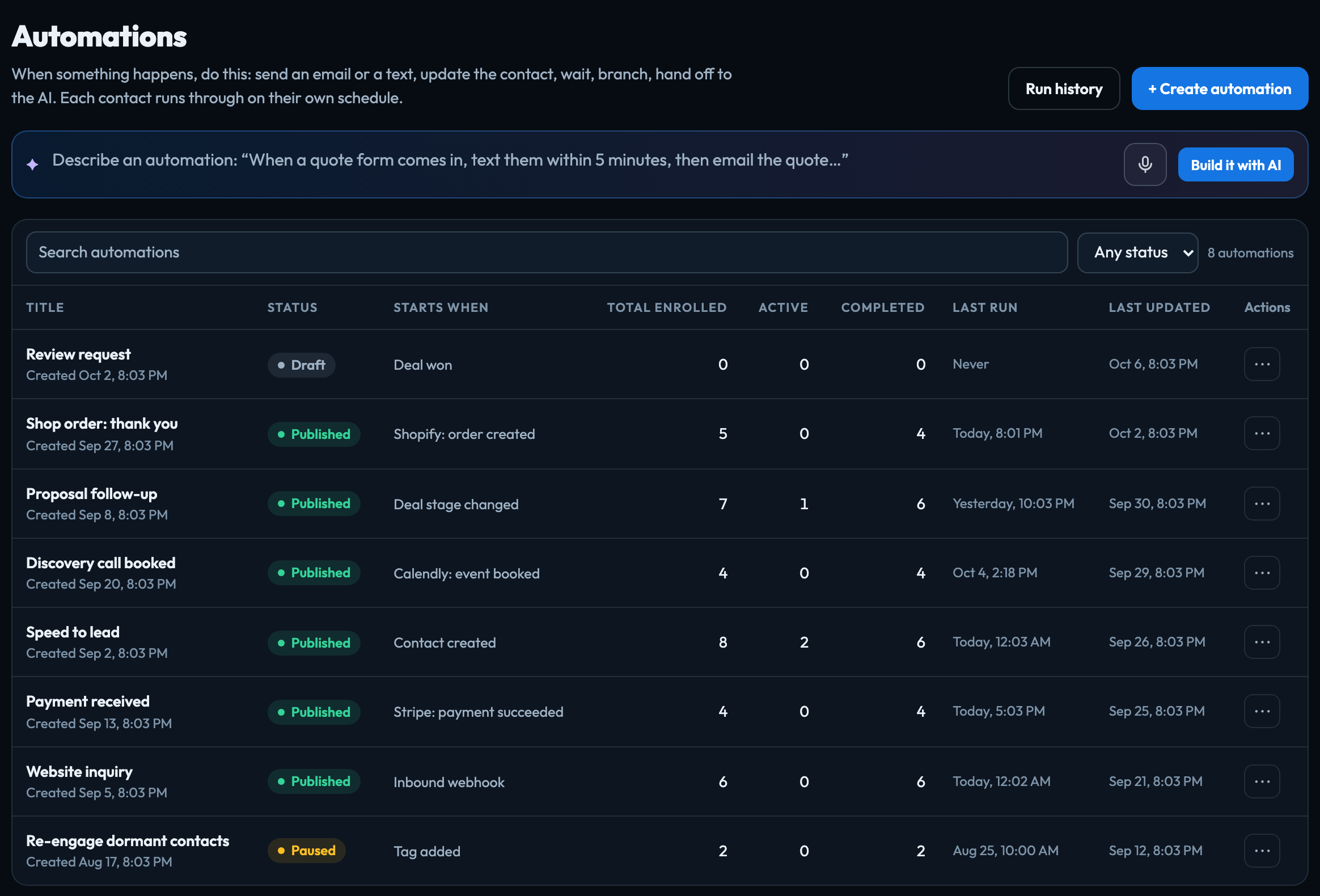
The list
| Title | The automation's name. Click it to open the builder. |
|---|---|
| Status | Draft (built, not running), Published (running), or Paused (stopped for now; contacts already in it wait where they are). |
| Starts when | What starts it, for example "Deal stage changed". |
| Total enrolled, Active, Completed | How many contacts have entered it, are in it now (including those waiting), and have finished. |
| Last run, Last updated | When a contact last moved through it, and when it was last changed. |
The ⋯ menu on a row can Duplicate, Pause or Resume, show its runs, or Delete it. Deleting an automation that still has contacts in it asks first and stops them.
Start one
- Click Create automation, or a card under Start from a template: Speed to lead, Quote follow-up, Abandoned checkout, New order thank-you, Review request, Failed payment follow-up, Typeform lead, Re-engage dormant contacts or Birthday greeting. Each opens as a draft with every step filled in for you to check. Quote follow-up starts when a deal moves to Proposal; choose another stage in its trigger if you send quotes at a different point.
- Build it: see Build an automation.
- Click Publish. From then on, everything that matches its trigger starts it.
Editing a published automation saves a draft; the published version keeps running until you click Publish changes. That button is off while the draft is the same as what is published.
Or describe it: type what you want in Describe an automation (for example "When a deal moves to Proposal, email the quote, wait 2 days, and if they haven't replied, text them") and click Build it with AI. Odin proposes the automation; nothing is created until you click Open in the builder, and nothing is published until you do. You can ask Odin the same thing from any page.
Once the VeraGen API is open, your own systems can also enroll contacts in a published automation, and read its runs, through it with an API key that has the automations:enroll or automations:read scope: see API keys. The API cannot create, change or publish an automation.