Tellagent
Build an automation
The builder shows an automation from top to bottom: what starts it, then each step, with a + between steps to add another. Paths split where a Branches or If / Else step decides, and each path ends with End.
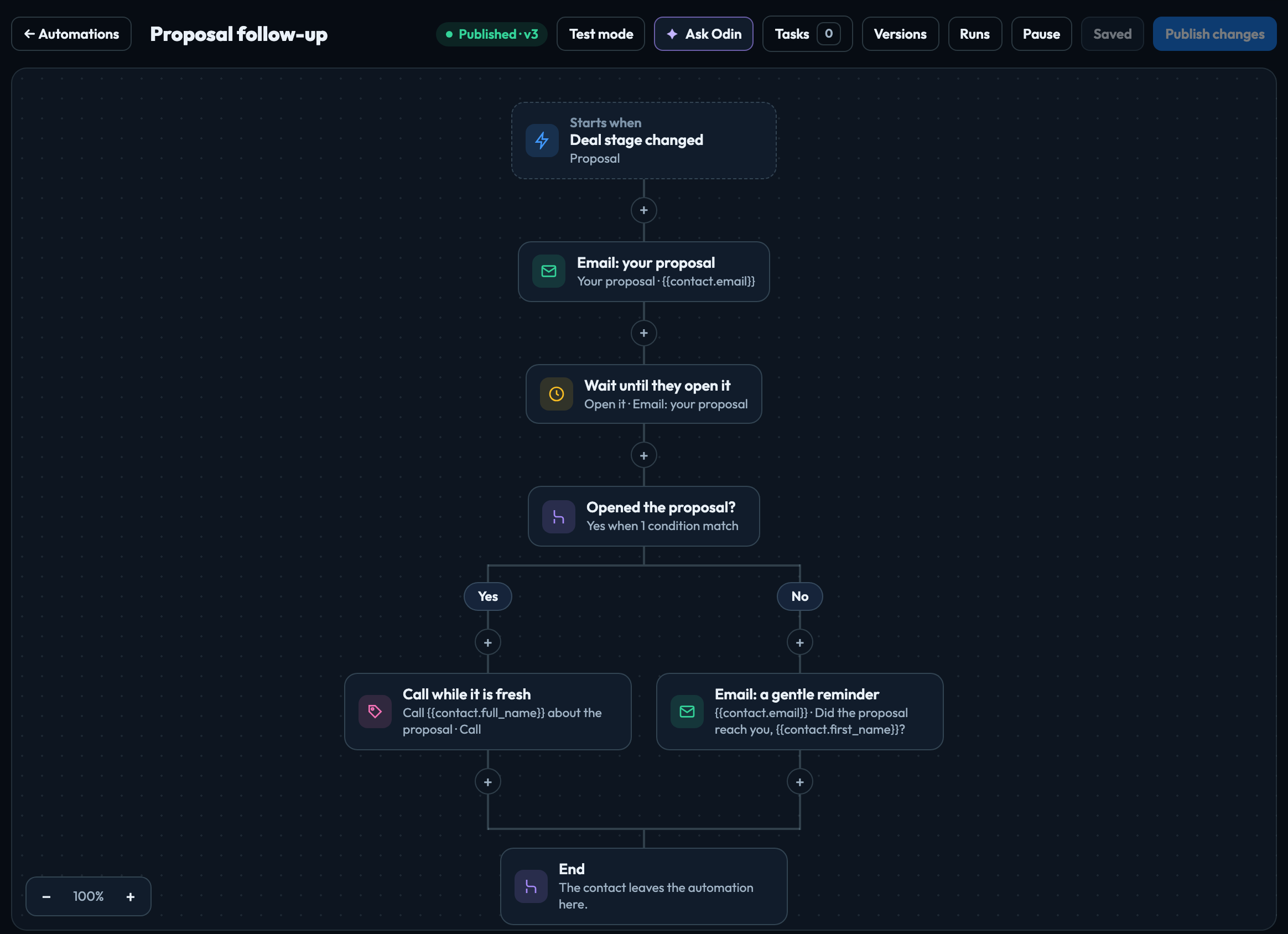
Starts when
Click the top box to choose the trigger and, under Only run if, the conditions a contact or deal must meet to start it (All conditions match or At least one matches; each condition is a field, a comparison and a value).
| Contacts and deals | Contact created, Contact updated, Tag added, Tag removed, Deal created, Deal stage changed, Deal won, Deal lost. Deal stage changed offers your Thrive pipeline's stages (New, Qualified, Discovery, Proposal, Negotiation, and any other stage your deals already have); leave From stage or To stage empty for any stage. |
|---|---|
| Dates and schedules | A date comes round (a contact's birthday, a deal's close date), On a schedule. |
| Webhooks and stores | Inbound webhook, Shopify (order created, checkout abandoned, order fulfilled), WooCommerce (order created, checkout abandoned, order completed). Set these up in Connections first. |
| Payments, bookings and forms | Stripe (payment succeeded, payment failed, subscription cancelled), Calendly (event booked, event cancelled), Typeform (form submitted). Also set up in Connections. |
| Your website (Chimp) | Website: form submitted: someone sends a form on a site Chimp built in this project, such as a contact form or a quote request. The sender is the contact. It brings {{trigger.form.message}}, the other answers as {{trigger.form.fields}}, the form's name, page, and the site's name and address. Only this form starts it for one form, by its name (for example Contact). See Forms send to you. |
| Messages | Email reply received, Text received. |
| Manual | Enrolled by hand, from a contact or with Test mode. |
The goal (also in the top box) takes a contact out of the automation as soon as it is true, for example "Deal stage is Won".
Steps
Click + to open Add a step, search or pick from its groups, then fill in the step in the panel that opens. A step that is not filled in yet has a red border, and Publish stays off until there are none. A step that cannot be used yet is shown greyed, with the reason.
| Communication | Send email (to the contact, with merge fields), Send email from a template (one of the project's email templates), Send SMS (once texting is set up in Connections), Wait for a reply (by email or text, with a time limit), Wait for an email event (until the contact opens, clicks or replies to an email, with a time limit; see Email in automations), Notify my team (by email or Slack). |
|---|---|
| Logic | Branches (named paths, each with its own conditions, plus None of the above), If / Else (a Yes path and a No path), Wait (minutes, hours, days, business days or weeks, or until a time window on the days you pick), Go to, End. When a path runs out of steps, the contact carries on with the step after the Branches or If / Else step. |
| CRM | Add tag, Remove tag, Update a field, Create deal, Move deal stage, Create task, Add note. A stage in Create deal and Move deal stage is one of your pipeline's stages too. An automation saved earlier with a stage that is not in your pipeline shows it as "(not in your pipeline)" and cannot be published until you choose a real one, because no deal could ever reach it. |
| AI | Write with AI (writes a personal email or text from the contact's history, inside the wording you give it), AI decides (sorts a reply, for example interested or not now, so you can branch on it), Run an AI workflow. |
| Integrations | Send a webhook (posts the contact and deal to an address you give), Shopify: tag the customer, Shopify: add an order note, WooCommerce: add an order note (a private note, or a note WooCommerce emails to the customer). The store steps need the store's access saved on its connection in Connections; the order notes also need the automation to start from an order of that store. |
Merge fields such as {{contact.first_name}} put the contact's or deal's details into a subject, a message or a value. Click a field name under the box to insert it. To sign an email, use {{sender.name}}: the Sender name from Automation settings, or the project's name when none is set. {{owner.name}} is the name in the contact owner's profile, or their email address if their profile has no name, and {{owner.first_name}} is empty then, so the templates sign with {{sender.name}} and don't name the owner. The Email fields (delivered, opened, clicked, replied, bounced: yes or no) describe the last email the automation sent the contact, for conditions after a Wait for an email event. What the trigger brought is under Trigger: for example {{trigger.order_number}} for a store order, {{trigger.payment.amount}} for a Stripe payment, {{trigger.event.start_time}} for a Calendly booking, and {{trigger.answers.<ref>}} for a Typeform answer, where <ref> is the question's ref in Typeform.
Ask Odin and Tasks
Ask Odin in the top bar changes this automation for you: say what you want ("after the text, wait 3 days and notify the deal owner") and Odin proposes it. Nothing changes until you click Apply, and you can undo it.
Tasks lists what is left before you can publish: each step that is not set up (click one to open it), texting that is not set up yet when the automation sends texts, and testing it on one contact.
Test, publish and change
| Test mode | Runs the draft for one contact you pick. Every email and text goes to you, not to the contact; nothing in Thrive is changed. When the automation starts from a deal, the test uses that contact's most recently updated deal, so deal fields are filled in. |
|---|---|
| Publish | Starts it for real. Editing a published automation changes a draft; the published version keeps running until you click Publish again. Contacts already in it carry on from the step they are on. |
| Versions | Every published version is kept. Restore as the draft brings an earlier one back to edit. |
| Pause / Resume | Stops new contacts from starting and holds those already in it, until you resume. |
Only owners and admins can publish, pause and delete automations; anyone who can edit the project can build drafts. You can change this in Automation settings.