Team & platform
Connections
Account → Connections. Services your whole account connects to, shared by every project. Slack is the first.
Connecting Slack
- An owner or admin clicks Connect Slack.
- Slack asks which workspace to add the VeraGen app to, and what it may do. Approve it.
- You come back to Connections, which shows the workspace it is connected to.
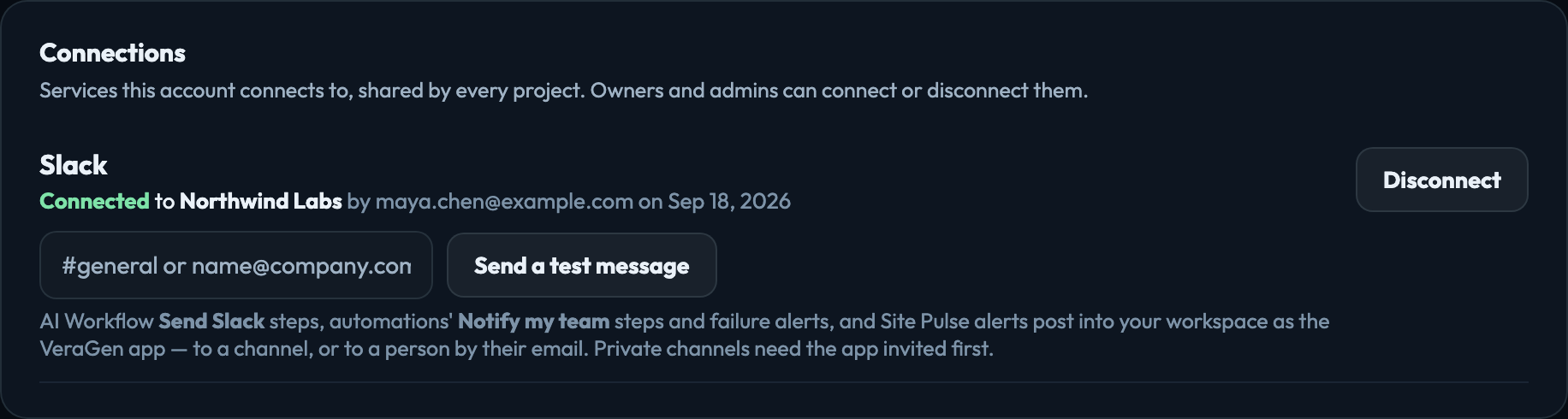
Use Send a test message to check it: enter a channel such as #general, or a person’s email to message them directly.
What uses it
| Send Slack (AI Workflows) | Posts the step’s message to a channel, or to a person by their email, as the VeraGen app. |
|---|---|
| Notify my team (Automations) | With How set to Slack, or Email and Slack, posts to the channel or person you choose. Tellagent › Settings can also send an automation’s failure alerts by Slack. |
| Site Pulse alerts | The Notify Slack field on a test posts its alerts the same way. |
Public channels work straight away. For a private channel, invite the VeraGen app to it in Slack first.
Without a connection, a Send Slack step stops the workflow and says Slack isn’t connected — it never posts anywhere else. Disconnect removes the app’s access at Slack as well as here.