Thrive CRM
Contacts and companies
Contacts and Companies are tables you can search, filter, sort and act on in bulk. Click a row to open its record.
The lists
- Tabs — All (for owners and admins; All I can see for everyone else), Mine, and for owners and admins Unassigned.
- Filters — Created date, Last activity and More filters: contact type, lifecycle, lead status, lead source and place for contacts; industry, company type, organization type and place for companies. Clear all removes them.
- Edit columns shows, hides and reorders columns. Your choice is kept in this browser.
- Tick rows to Assign them to a member or Archive them. Thrive says how many it did, for example Assigned 3 of 5: only a record's owner, or an owner or admin, can give it away.
- Export all downloads the current list as a CSV, up to 10,000 rows; with rows ticked, the button reads Export 3 selected and exports only those.
- Restore lists archived records; Restore on a row brings it back as it was.
- Create contact or Create company adds one. An email address belongs to one contact per account, so adding one that already exists is refused.
A record
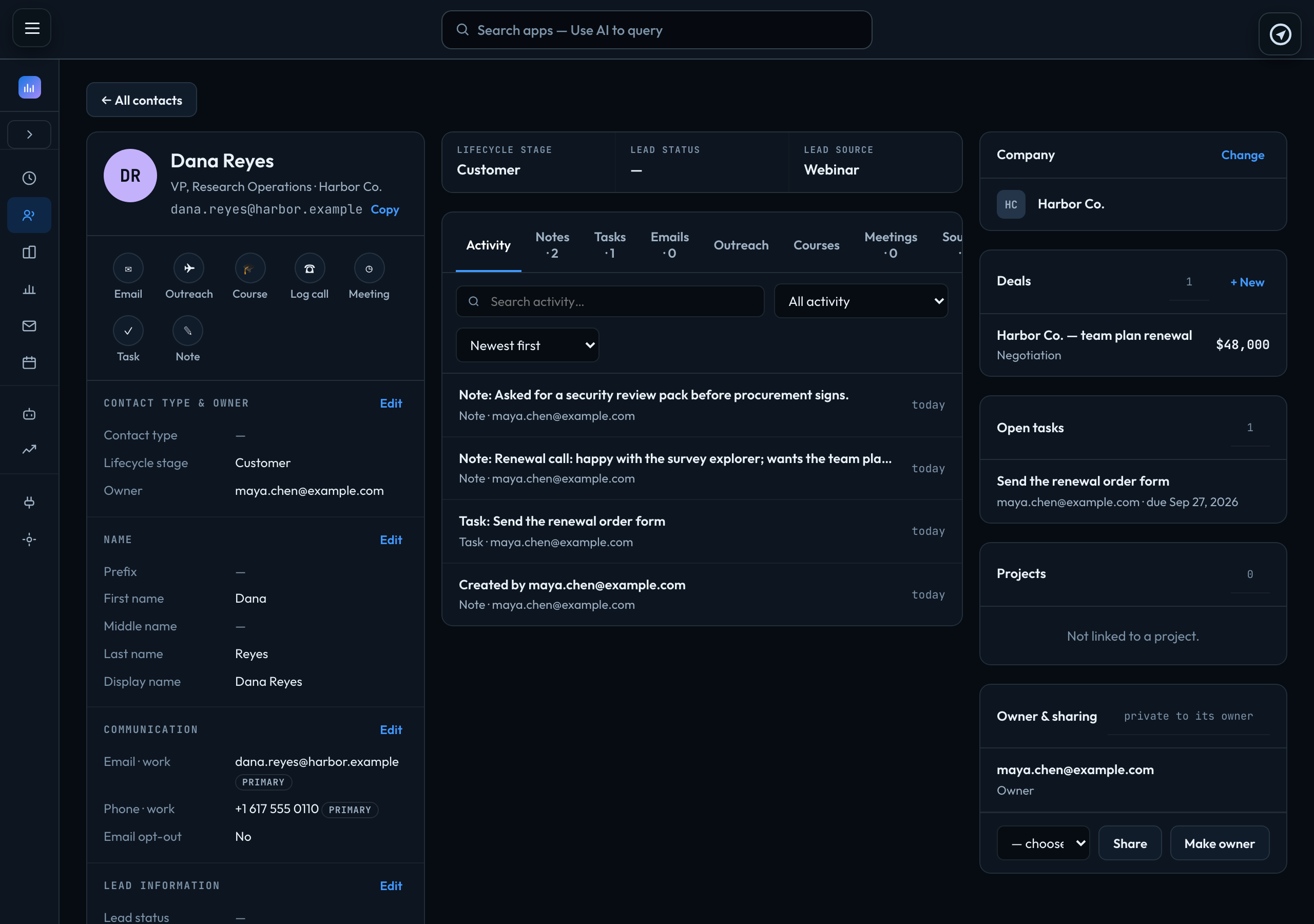
A record has three columns.
Left: who they are. Quick actions — Email, Outreach and Course (for a contact with an email address), Log call, Meeting, Task and Note — then the fields in sections. Press Edit on a section, change it, and press Save or Cancel. A contact can have several emails, phones and addresses; the one marked primary is used everywhere else. Archive is at the foot.
Middle: what has happened. Activity (search it, filter it by type, newest or oldest first), Notes and Tasks, and on a contact Emails, Outreach, Courses, Meetings and Sources — where each value came from. Why every field has a source
Right: what it is attached to. Its company (or, on a company, its people), Deals with + New, open tasks, the projects a contact is linked to, and Owner & sharing.
| Log call | A note that starts "Call —". |
|---|---|
| Meeting | Opens a new calendar event with them as a guest. The calendar |
| Task | A to-do, call, meeting or email, with a due date, priority and who it is for. A task can only be given to someone who can see the record — share it with them first. |
Tags and SMS consent
On a contact's left card:
| Tags | Short labels such as vip or quote-sent. Type in Add a tag… and press Enter (or click Add); click × on a tag to remove it. Tags are saved in lower case. A contact can have up to 30, each up to 40 characters. In the list, filter by one with More filters → Tag, and show them with the Tags column (Edit columns). Adding or removing a tag can start an automation: see Automations. |
|---|---|
| SMS consent | Whether the contact agreed to receive texts, since when, how (They told us, A form they filled in or An import) and who recorded it. Click Change to update it. Texts from automations go only to contacts who said yes, and never to someone who replied STOP. |
A link to a record you cannot see
A link to a contact or company (for example from an email, or from another app) opens it directly. If it is not one you can see, Thrive shows This contact isn’t available to you on a page of its own, with Go to your contacts: it may belong to someone else, or was never shared with you. Ask its owner, or an account owner or admin, to share it.
Linking a contact to a project
When you create a contact, or on any deal, + Link a project links it to a project as a lead, customer, partner, supplier or other.
On an existing contact, Projects on the right → Edit (or + Add). Change a relationship, + Link a project, or Remove one, then press Save. Removing a link never removes the contact. A link to a project you cannot open stays as it is unless you remove it.